
Outcome
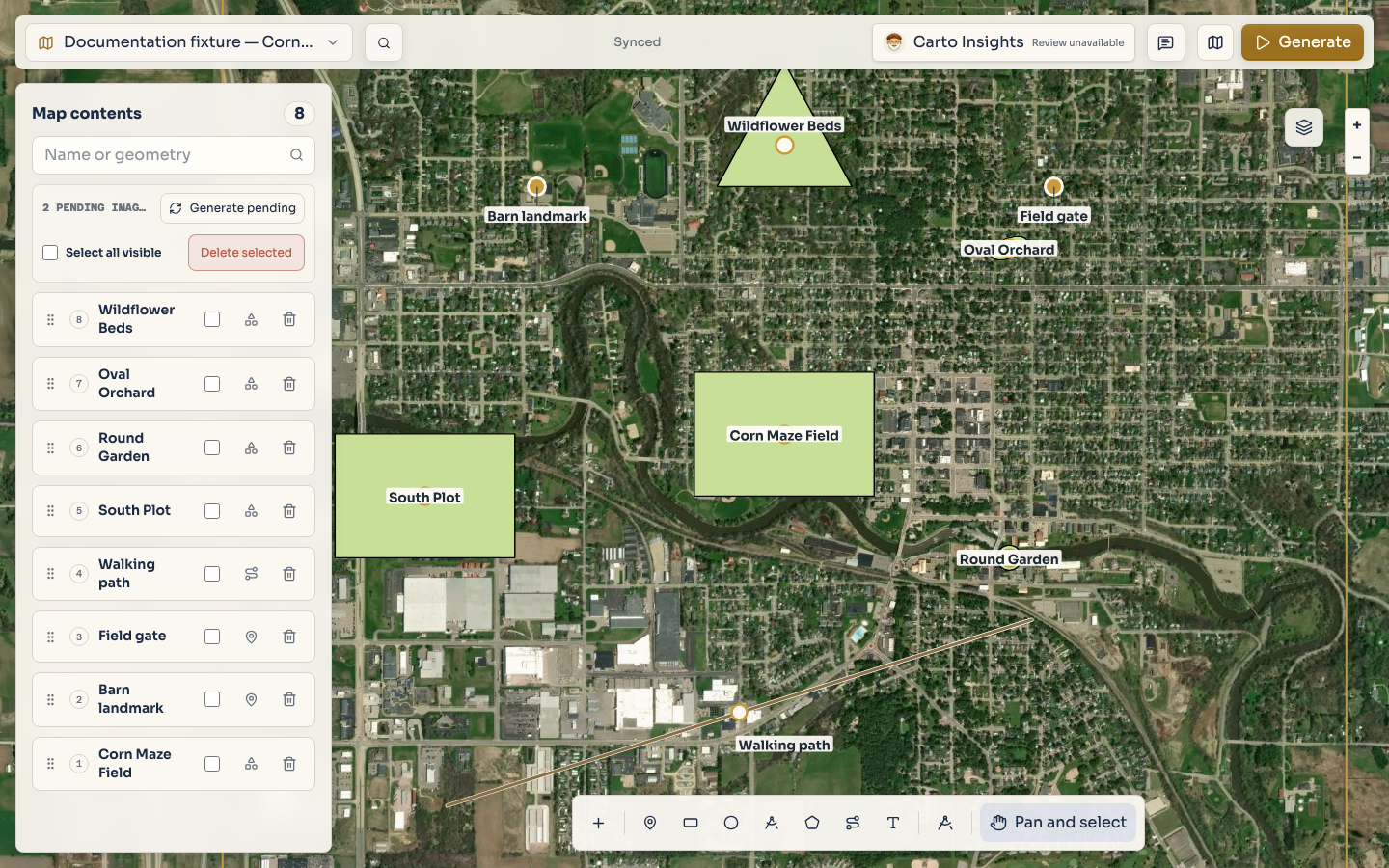
Place a point, area, or path and continue editing it from the artifact inspector.
Before you start
- A Cartowright map open in the editor.
- A map view where the intended feature can be placed.
Use a point for a specific place, a shape for an area, and a path for a route. Draw directly on the
map, then select an artifact to refine its name and design.
Map data: © Mapbox, © OpenStreetMap contributors, © Maxar, Improve this map
Project fixture: documentation-feature-guides
Choose a tool
Open the Create group in the drafting rail, or use the direct rail controls when they are
visible. Choose the shape that matches what you want people to understand:
| Tool | Best for | Gesture |
|---|---|---|
| Point | A single entrance, landmark, or meeting place | Click once on the map. |
| Rectangle | A regular block, field, or building footprint | Drag from one corner to the opposite corner. |
| Circle | A round area with one radius | Drag from the center toward the edge. |
| Oval | An area that needs separate width and height | Drag across the area. |
| Polygon | A closed irregular area | Click each corner, then choose Finish or press Enter. |
| Path | A route or other open line | Click each vertex, then choose Finish or press Enter. |
When you are not typing in an editable field, use P or A for Point, R for Rectangle,
C for Circle, O for Oval, G for Polygon, and H for Path. These shortcuts select a
tool; use the map gestures in the table to place or draw the artifact.
Use Rectangle when right angles communicate the idea. Use Polygon for a boundary that must
follow several corners, and Path when the feature is a route rather than an area. A point is
useful when the exact footprint is less important than the location.
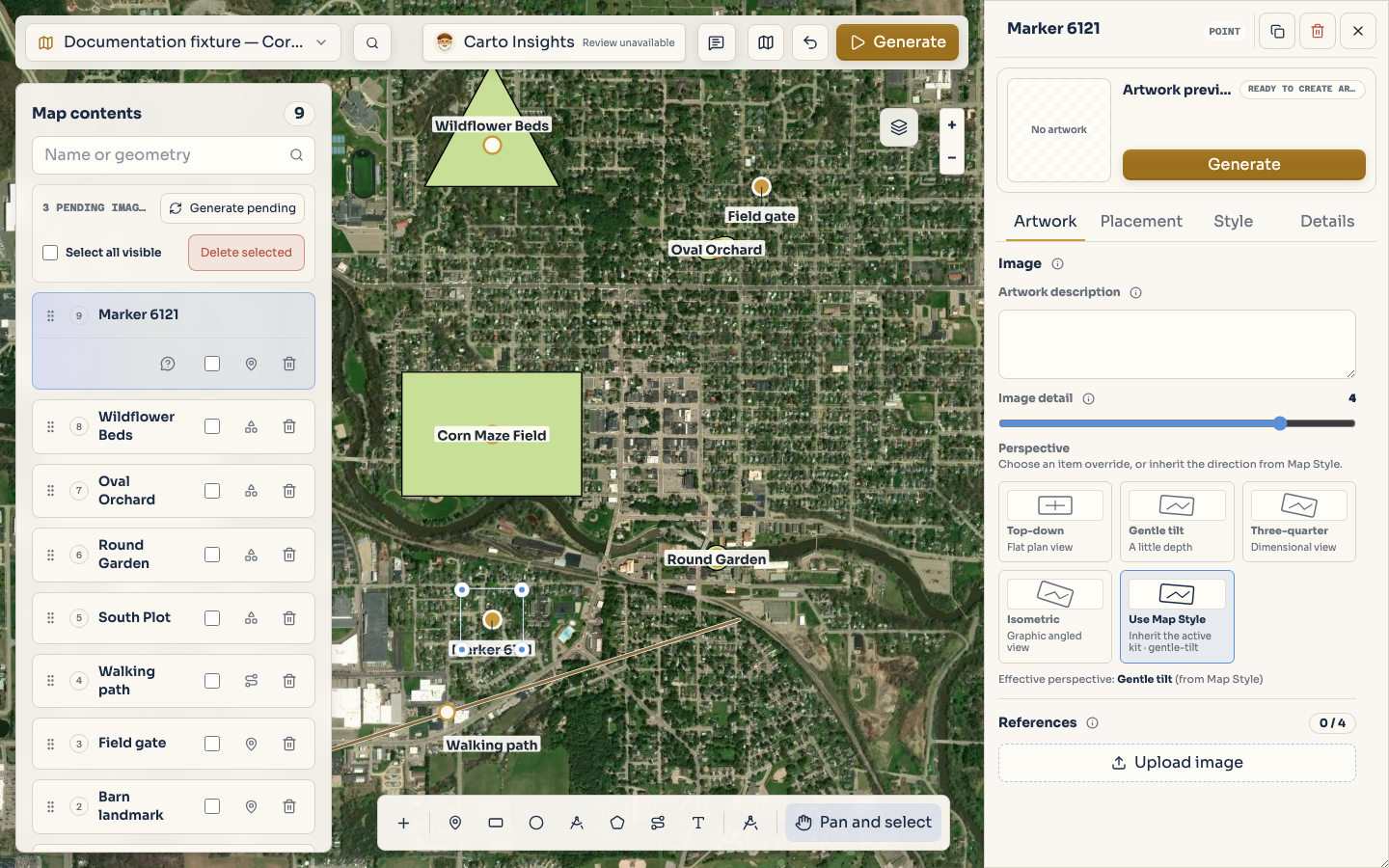
Choose Point and click once where the place belongs. The inspector opens so you can name and
refine it.
Map data: © Mapbox, © OpenStreetMap contributors, © Maxar, Improve this map
Project fixture: documentation-feature-guides
Draw and constrain a shape
Map data: © Mapbox, © OpenStreetMap contributors, © Maxar, Improve this map
Project fixture: documentation-feature-guides
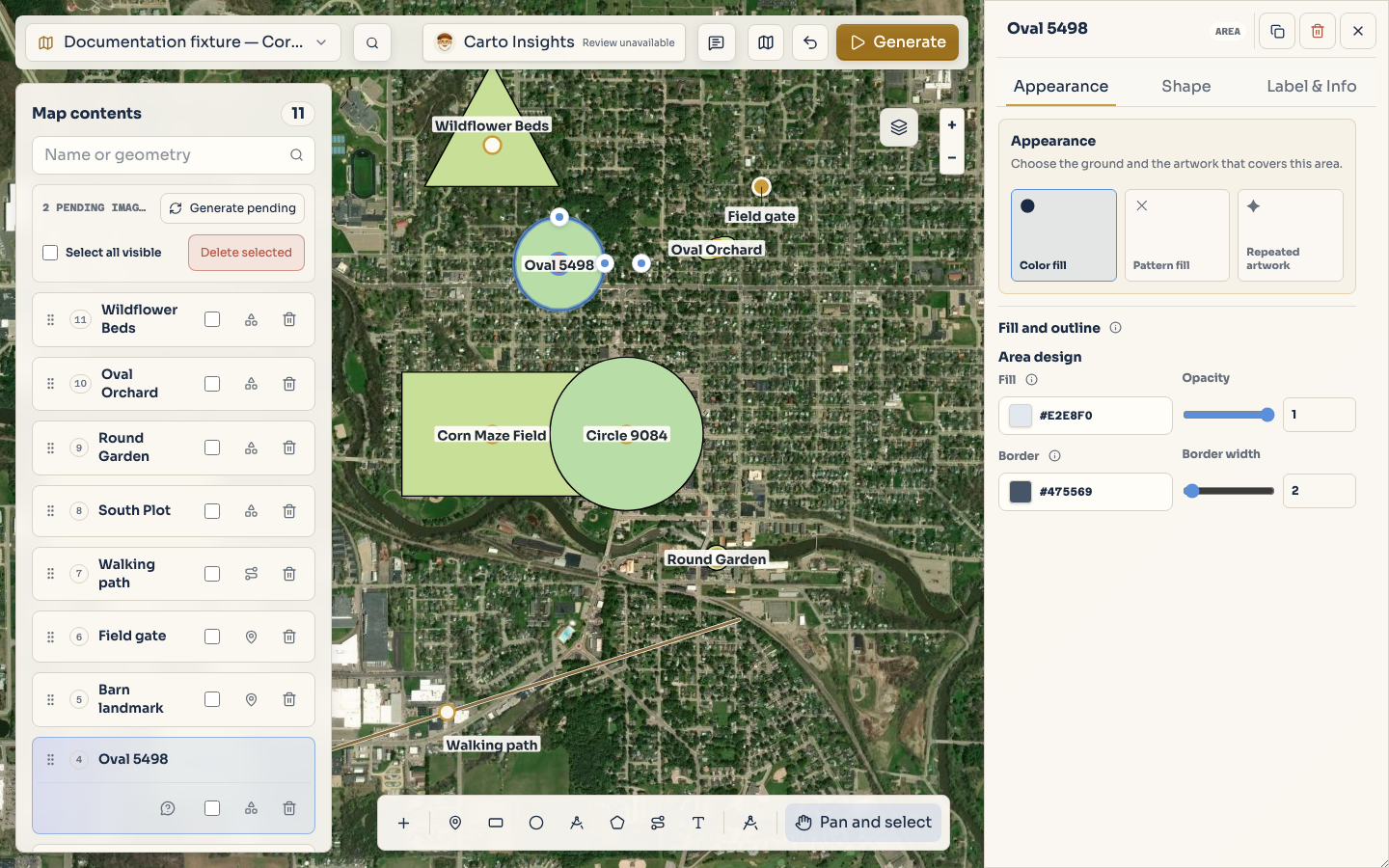
For drag tools, keep the pointer down while you establish the extent and release to place the
shape. Hold Shift, Command on macOS, or Control on Windows or Linux while drawing a
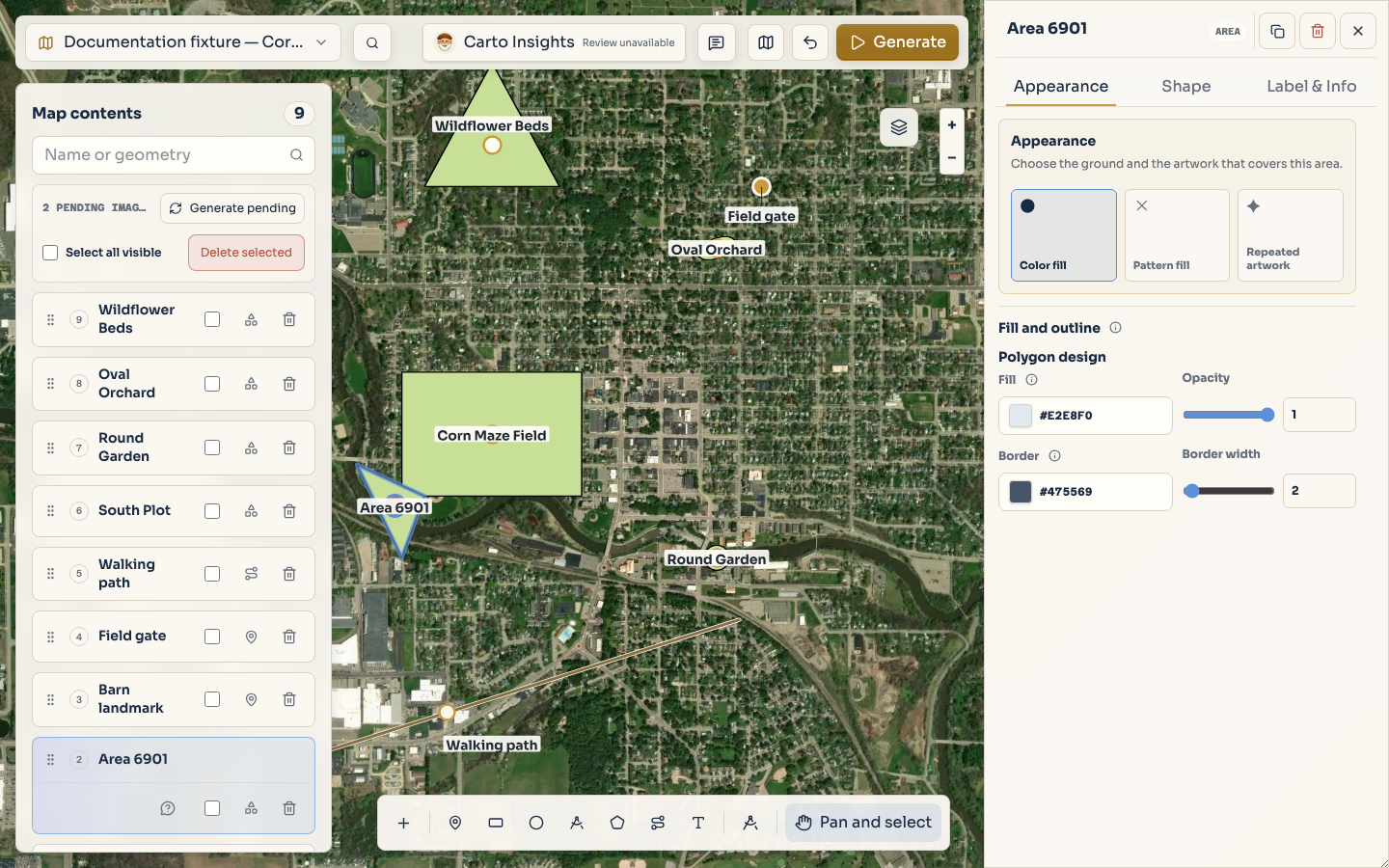
rectangle when you need a square. For polygon and path tools, each click adds one vertex in order.
The editor keeps the unfinished drawing separate until you finish it.
Map data: © Mapbox, © OpenStreetMap contributors, © Maxar, Improve this map
Project fixture: documentation-feature-guides
Press Backspace to remove the most recent vertex while a polygon or path is in progress. Press
Escape to cancel the active map tool or clear the current selection. Press Enter, or use the
visible Finish command, to commit a multi-vertex drawing. These commands are safer than trying
to repair an incomplete ring after placement.
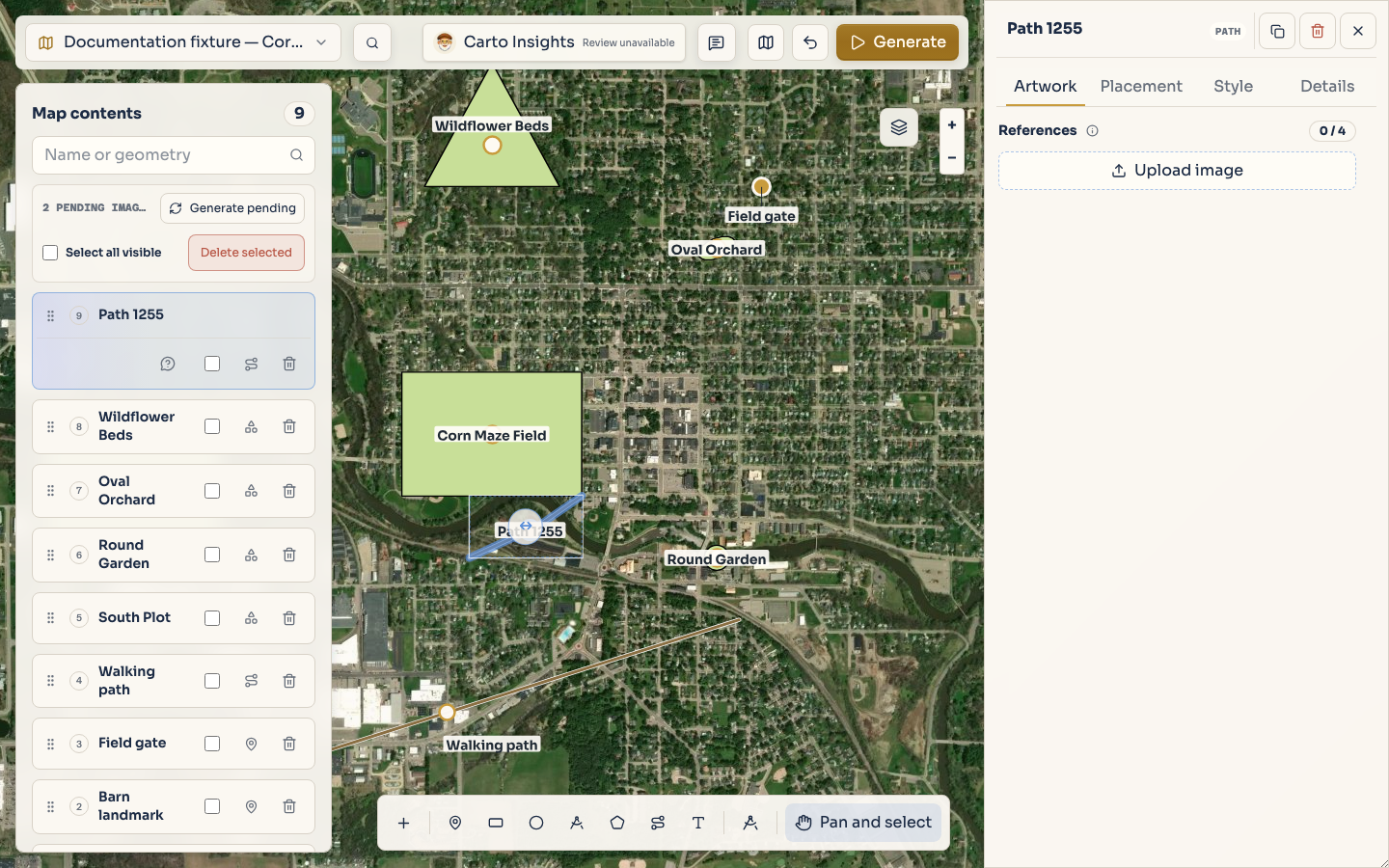
Map data: © Mapbox, © OpenStreetMap contributors, © Maxar, Improve this map
Project fixture: documentation-feature-guides
Refine the result
Select the new artifact to open its inspector. Rename it, add a description, choose its design
controls, and adjust its geometry when the inspector offers those controls. The map remains the
work surface: selecting an artifact should not turn the drafting rail into a separate drawing
canvas.
Choose Save project or press Cmd+S on macOS or Ctrl+S on Windows or Linux. Use
Cmd+Z or Ctrl+Z to undo. Redo with Cmd+Shift+Z on macOS or Ctrl+Shift+Z on Windows
or Linux; Ctrl+Y is also supported for redo.
Make the controls accessible
Prefer the named buttons in the drafting rail and the visible Finish command. Keyboard users
should be able to reach the same tool commands, and an artifact should remain understandable from
its name and inspector controls rather than its color alone. Keep the map as the visual focus while
using the rail as the compact command surface.
For the related mobile workflow, see Record a path while you walk.